MobiOffice: Word, Sheets, PDF
- 4.4
- Rating
- 100.00M
- Installs
- Free
- Price

 Analysis by App-foxy
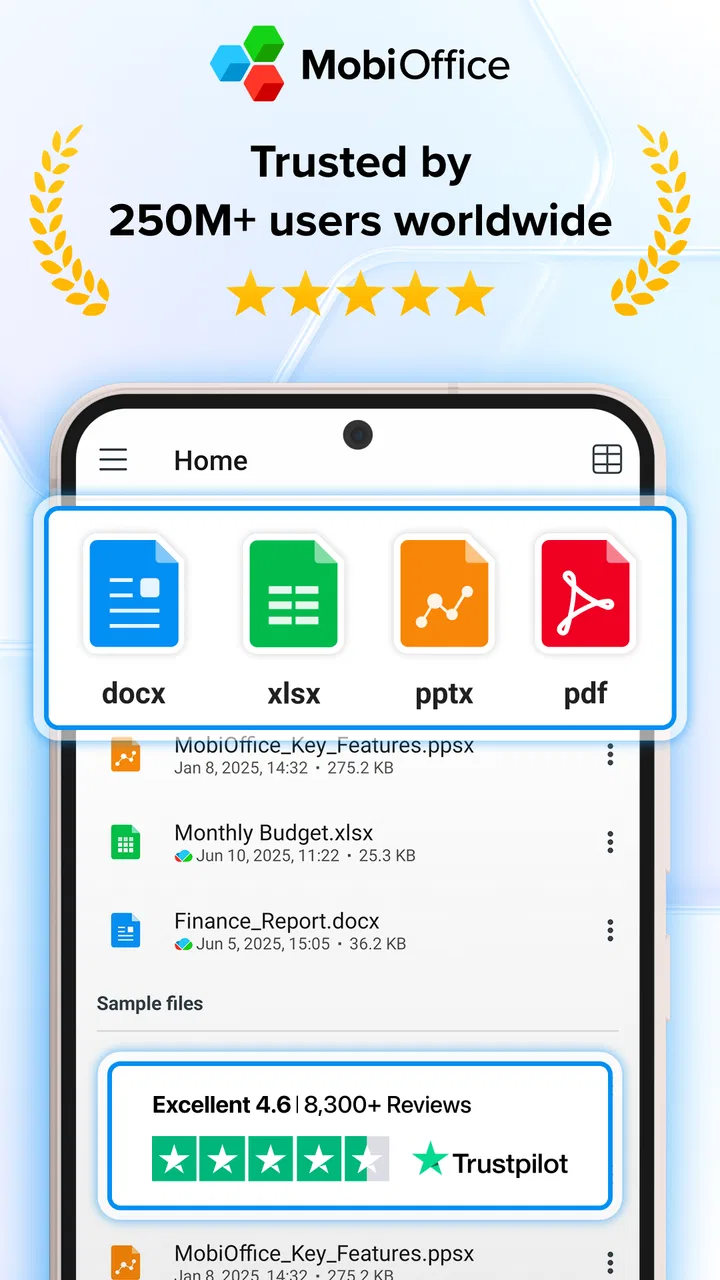
When I first opened MobiOffice: Word, Sheets, PDF, I treated it less like a full desktop replacement and more like a practical workbench for documents on a phone. That turned out to be the right expectation. It brings together word-processing, spreadsheet, presentation, and PDF work in one mobile office app, so I can move from reading a report to editing a table without switching between several unrelated tools.
It is a free business app from MobiSystems, available for Everyone and supported on Android devices running version 7.0 or later. The app has been around since December 22, 2011, and its current version is 16.1.58775. Its average rating sits at 4.3 from around 1.5 million ratings, while total installs have passed 100 million. Those figures suggest that it has become a familiar option for people who need office files away from a computer, although popularity does not remove the need to check whether its editing approach suits your routine.
What to expect before you start
The main appeal is concentration. Instead of keeping one app for Word documents, another for spreadsheets, a separate presentation viewer, and a dedicated PDF tool, I can begin with one file and stay inside the same general workspace. That is especially useful when work arrives through email or messaging and I need to inspect, adjust, and return it quickly.
In-Depth Coverage of MobiOffice: Word, Sheets, PDF
I would not approach it expecting every desktop feature to feel equally comfortable on a small screen. Text editing is generally the easiest place to begin because the task is familiar: open a document, tap into the text, make a correction, and save or share the result. Spreadsheets demand more patience because selecting cells, entering formulas, and moving around a wide sheet are naturally less precise on a phone. Presentations are useful for review and small edits, but building a polished deck entirely on a mobile display can feel slower than doing the same work on a laptop.
The PDF side is valuable because PDFs are often the files that cause the most friction on mobile. I can open a document for a quick inspection, read it while travelling, and use the editing tools when the file needs more than simple viewing. The sensible way to think about this part of the app is as a convenient mobile PDF workspace, not as a promise that every complex desktop publishing workflow will be equally smooth.
There is also a practical distinction between installing the app for occasional access and relying on it for daily office work. Occasional users may only need to open a document, correct a line, or check a spreadsheet. Frequent users should spend time learning where the editing controls are and how the app handles their preferred file workflow. That small investment makes the difference between a reassuring tool and an app that feels crowded.
The app is free to install, with in-app purchases ranging from $1.49 to $149.99 per item. I would therefore begin by testing the tasks I actually perform before paying for anything. A person who mainly reads files may have a very different experience from someone who needs advanced editing every day, and the value depends on that difference.
Who will get the most from it
I think it is a strong fit for students, freelancers, small-business owners, field workers, and anyone who regularly receives office files but does not always have a computer nearby. It is also useful for people who want a single place to handle mixed file types rather than remembering which app opens which document.
For example, imagine receiving a supplier spreadsheet while standing in a shop. I can open the sheet, check the quantities, adjust a mistaken entry, and send it back before returning to the rest of the day. That is a meaningful success because the app removes the delay between noticing a problem and dealing with it.
It is less suitable for someone whose work depends on highly complex spreadsheets, exact desktop layout control, or long writing sessions with a physical keyboard. In those situations, a desktop office suite remains more comfortable. I would also think twice if my main need is only reading PDFs; a lighter reader may feel quicker and less busy.
From installation to the first useful result
I’ll focus on making the first session feel manageable: start with a familiar file and one small task, rather than trying to learn every tool at once. A quick check of the result before sharing it is a useful habit, and the next section explains how to choose that first file and get oriented.
Start with one real file, not a tour of every tool
After installing MobiOffice, my advice is to avoid opening every feature just to see what is there. Choose one ordinary file that represents your real need: a short document that needs a correction, a spreadsheet with a few values to check, a slide deck you need to review, or a PDF that requires attention. Starting with a familiar task makes the interface easier to understand because each button has an immediate purpose.
The first setup should be simple and deliberate. Open the file from the place where you normally receive it, then notice how the app presents the document and where the editing controls appear. If the file opens in a viewing state, look for the control that changes from reading to editing rather than tapping randomly around the page. On a phone, that distinction matters: many frustrations come from assuming that visible content is automatically ready for modification.
I also recommend checking the document before making changes. Look at the page count, scan for tables or images, and see whether the layout appears intact. With a spreadsheet, move across a few columns and rows before editing. With a presentation, flip through several slides. This quick inspection helps reveal whether the file is a straightforward mobile job or something better handled later on a larger screen.
Your first document edit
For a first success, a text document is usually the least intimidating route. Tap into a sentence, make one small correction, and then pause to confirm that the change appears where you intended. This sounds basic, but it teaches the essential mobile rhythm: select carefully, edit in short bursts, and review before leaving the file.
You May Also Like

 Lords Mobile: Kingdom Wars
Lords Mobile Is a Kingdom-Building Routine, Not a Quick Match
A case-by-case verdict on the building, battles, device demands, and social commitments that make Lords Mobile rewarding for some players and exhausting for others.

 PDF Scanner app - TapScanner
TapScanner Makes Paperwork Easier to Capture, Check, and Share
TapScanner makes scanning with a phone feel less like a rescue operation and more like a dependable step in getting work done. Its capture tools are useful, though not flawless.

 Block Blast!
Block Blast! Shows How Much a Puzzle Game Can Leave Out
A quiet grid game shows why puzzle players increasingly value instant clarity, repeatable skill and low-pressure play—and where the genre still needs to catch up.

 Family Space
Family Space Review: A Shared Routine That Makes Family Life Easier
A parenting app earns its place not by adding more noise, but by making everyday coordination easier. Family Space gets that balance mostly right.

 1Weather Forecasts & Radar
1Weather Forecasts & Radar Makes the Daily Check Worthwhile
A good forecast does more than predict rain. This week's pick turns changing conditions into a clear, practical reason to check before you step outside.

 Clash of Clans
Clash of Clans Makes Patience Part of the Strategy
A village builder with a sharp tactical core, Clash of Clans turns patience into momentum and each raid into a small, satisfying act of judgment.
More From Our News Desk
View All News


On a phone, selection is often the real challenge rather than typing. I find it more reliable to zoom in when a sentence is crowded, place the cursor slowly, and avoid trying to select a long passage in one gesture. Short edits reduce accidental deletions and make it easier to notice formatting changes. If the document contains headings, lists, or tables, test one of those areas separately instead of assuming that ordinary paragraph editing tells you everything.
A useful habit is to make the smallest possible change first, then close and reopen the file if the document is important. That extra check confirms that the edit was retained and that the layout still looks right. It is a particularly sensible step before sending a corrected contract, application, invoice, or school assignment to someone else.
Using a spreadsheet without fighting the screen
Spreadsheets require a different approach. I would not begin with a large workbook full of tabs and formulas. Start with one visible cell and make a harmless change, such as correcting a label or entering a value that you can verify immediately. Then check the surrounding row and column to make sure the edit landed in the intended location.
The most useful mobile spreadsheet habit is to separate navigation from editing. First move to the correct cell, then enter the value, and finally review the row or column. Trying to scroll, select, and type in one continuous gesture is where mistakes happen. When a sheet is wider than the display, orientation and zoom become practical tools rather than optional conveniences.
I also treat formulas with caution on a phone. A small typo can be difficult to spot when the formula bar and cell grid compete for space. If a calculation matters, compare the result with a simple manual check or open the file on a computer afterward. MobiOffice can make a quick correction possible, but mobile convenience should not replace verification in financial or operational work.
Reviewing slides and working with PDFs
Presentations are most immediately useful for review. I can move through slides, check whether text is cut off, and make a small correction before a meeting. For a first attempt, I would change one short text element and then inspect the entire slide at normal viewing size. A change that looks fine while zoomed in may affect the overall balance when the slide is viewed as a whole.
PDF work benefits from the same cautious workflow. Open the file, read several pages, and identify whether the task is reading, marking up, or changing content. The important question is not simply whether the PDF opens; it is whether the exact action you need feels manageable on a touch screen. A short form or a document needing a quick adjustment is a sensible first test. A long, heavily designed file deserves a more careful review before you depend on it.
One non-obvious advantage of having documents and PDFs together is that I can use the app as a handoff point. A PDF may be the final version someone sends me, while a Word document or spreadsheet is the working material behind it. Keeping those tasks close together reduces the temptation to download several competing apps and lose track of which copy is current.
Common confusion that can slow down new users
The first source of confusion is the difference between opening a file and editing it. Mobile office apps often prioritize safe viewing because an accidental tap should not rewrite a document. If nothing appears to happen when you touch the page, check whether you are still in reading mode and look for the editing command.
The second issue is file location. A document may arrive through email, a messaging service, or device storage, and the app may not present each source in exactly the same way. I recommend opening the file from the original message or folder first, then using the app’s file view to return to it later. This creates a clear path instead of leaving several downloaded copies with similar names.
Another common mistake is judging the app by the first screen alone. The combined office approach means there are more tools than a single-purpose reader would need. That can feel busy at first, but the interface becomes more predictable when I focus on one format at a time. I would learn document editing first, then spreadsheets, then presentations and PDFs as they become relevant.
People also sometimes assume that a mobile editor will preserve every detail exactly as a desktop application does. I would always review page breaks, tables, fonts, images, and slide alignment after making a significant change. This is not a reason to avoid the app; it is a reason to match the tool to the job. Quick corrections are one thing, while final production of a complex document is another.
Three workflows that make the app more useful
My first practical workflow is the “inspect, correct, verify” loop. I open the file, inspect the surrounding content, make one focused change, and then verify the result from the normal viewing position. This is safer than making many edits while zoomed in and checking everything only at the end.
The second is a mobile-to-desktop handoff. I use the phone for urgent review or a small correction, then reserve the larger screen for extensive formatting. This trade-off keeps MobiOffice useful without forcing it to do work that a laptop handles better. It is particularly sensible for long reports, wide spreadsheets, and presentations where visual balance matters.
The third is to use the PDF capability as a final inspection step. After preparing or receiving a document, I can view the PDF version on the same device and check how it looks as a reader will see it. That catches problems that may not be obvious while editing the original file, such as awkward page breaks or content that sits too close to an edge.
A fourth useful habit is to keep an untouched copy before a major mobile edit. Phones are excellent for speed, but a small screen makes it easier to select the wrong paragraph or cell. Preserving the original gives me a way back if the change becomes messy. I consider this especially important for business records and shared documents.
How it compares with familiar alternatives
Compared with using separate office apps, MobiOffice’s clearest advantage is consolidation. I do not need to decide whether a document is best opened in a word processor, spreadsheet tool, slide viewer, or PDF editor before I begin. That simplicity is valuable when files arrive unpredictably.
Compared with browser-based office tools, a dedicated mobile app can feel more direct when I already have a file on the device. Browser workflows may be preferable for people who need constant collaboration, shared editing, or a familiar web workspace. I would choose based on the way the work arrives: local files and quick changes favor the app, while team-centered editing may favor a service built around shared online documents.
Compared with a full desktop suite, the trade-off is screen space and depth. MobiOffice is easier to carry and more convenient for urgent tasks, but a desktop remains the better environment for large spreadsheets, detailed formatting, and long sessions. The app works best as a capable mobile office rather than a reason to abandon every larger-screen tool.
Compared with a dedicated PDF application, its benefit is having PDF work beside Word-style documents, sheets, and slides. A specialist PDF tool may feel more focused for people who spend most of their day managing PDFs. Someone who handles mixed office files will probably appreciate the broader balance more.
Who should skip it, and what to do next
I would skip MobiOffice if I only need a very lightweight reader, if I rarely edit office files, or if my work depends on advanced desktop formatting every day. I would also avoid making it the sole tool for critical spreadsheet calculations until I had tested my actual templates and verified the results carefully.
For everyone else, the next step is straightforward: choose one real document, open it, make a small change, and inspect the result before sharing it. Then repeat the process with a spreadsheet or PDF that reflects your normal work. This approach answers the important questions quickly: whether the interface feels comfortable, whether your files display correctly, and whether the free installation covers enough of your routine to justify exploring the in-app purchases.
After using it this way, my view is balanced but positive. MobiOffice gives mobile users a broad set of office tools in one place, and its long presence, large install base, and 4.3 average rating show why it remains easy to consider. Its real strength is not replacing a computer in every situation; it is helping me finish the small but important document jobs that would otherwise wait.
My recommendation is to start small and judge it by your first completed task. If you need to correct a document on the move, check a spreadsheet before a meeting, review slides, or work with a PDF without opening several apps, it is a practical choice. If your priority is deep collaboration or elaborate desktop-level production, another tool may fit better. For first-time users, that honest expectation makes the path from installation to a useful result much less frustrating.
FAQs for MobiOffice: Word, Sheets, PDF
01What features does MobiOffice: Word, Sheets, PDF offer?
MobiOffice provides a comprehensive suite of tools for document creation and editing. Users can craft and edit text documents, spreadsheets, and PDFs all within one app. It includes features like real-time collaboration, cloud integration for easy access across devices, and various templates to streamline workflow.
02Is MobiOffice compatible with Microsoft Office files?
Yes, MobiOffice is fully compatible with Microsoft Office files. You can open, edit, and save documents in formats such as .docx, .xlsx, and .pdf, ensuring seamless integration with existing files and easy sharing with others who use Microsoft Office.
03Does MobiOffice require an internet connection to function?
While MobiOffice offers cloud storage and collaboration features that require an internet connection, the app allows users to work offline. You can access and edit documents without an internet connection, and changes will sync automatically once you’re back online.
04Is there a cost associated with using MobiOffice?
MobiOffice offers a free version with basic features, but to access premium tools, users will need to purchase a subscription. The premium version includes advanced editing features, additional storage options, and priority customer support. Pricing details can be found on the app’s download page.
05How secure is my data on MobiOffice?
MobiOffice prioritizes user data security with end-to-end encryption for all documents. The app employs secure cloud storage and complies with industry standards to protect your information. Regular updates ensure that security measures are up-to-date, keeping your data safe from unauthorized access.
Pros
- Intuitive and user-friendly interface.
- Supports a wide range of file formats.
- Offline access for documents.
- Real-time collaboration features.
- Seamless cloud integration.
Cons
- Occasional syncing issues.
- Limited free storage space.
- Some features require premium.
- Ads can be intrusive at times.
- Compatibility issues on older devices.

MobiOffice: Word, Sheets, PDF
Gallery